Obsidian Export 🚀
Tell your AI agent which notes to export. It handles the rest.



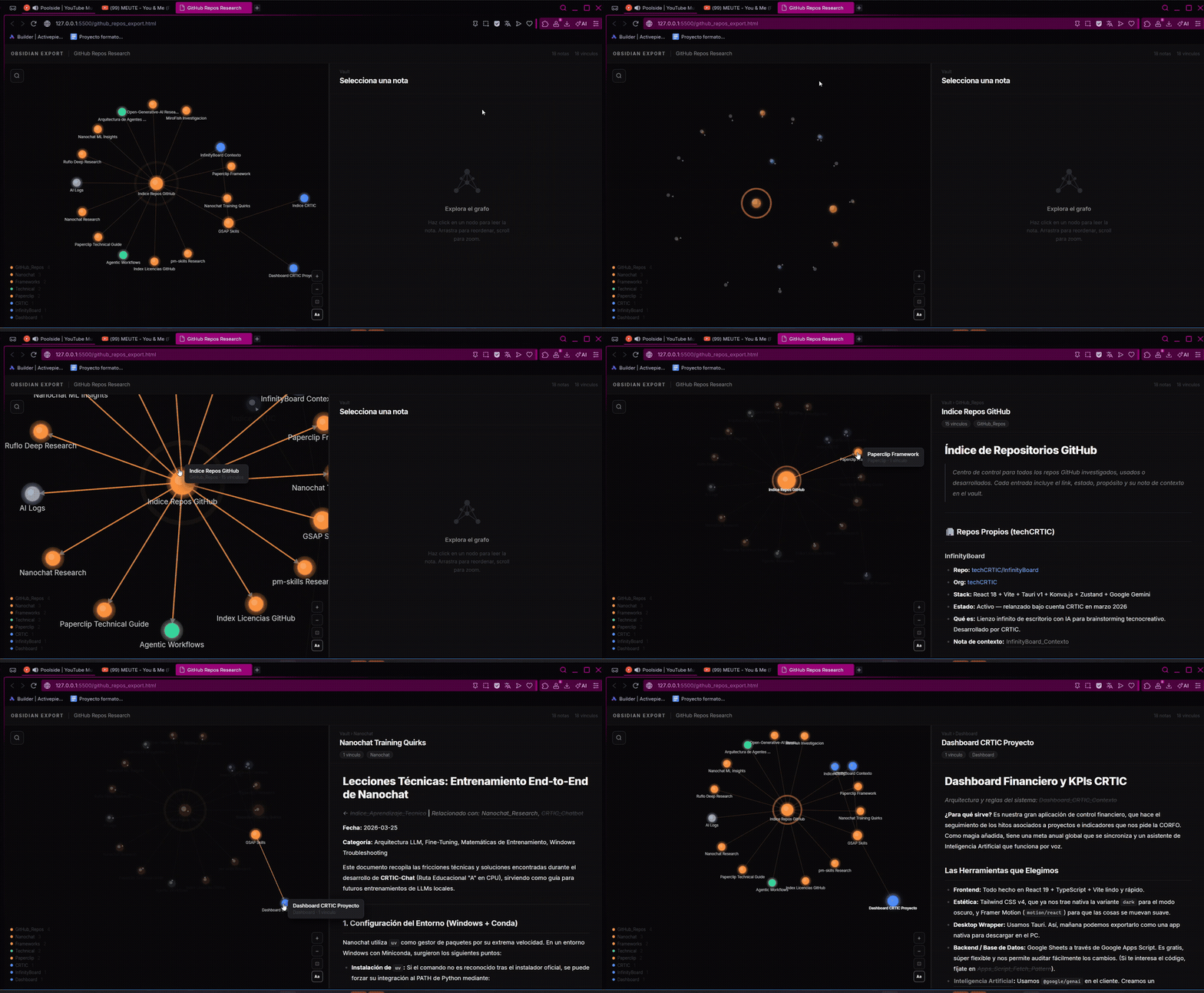
Obsidian Export turns your local Obsidian vault into a self-contained, interactive HTML knowledge map — driven by an AI agent that understands your intent, selects the right notes, and runs the export for you.
You don't touch the command line. You just say what you want.
🤖 How It Works
This repo is built around two components:
| Component | Role |
|---|---|
SKILL.md | Tells the AI agent what this tool does, how to use it, and what questions to ask |
src/obsidian_to_html.py | Deterministic Python script that does the actual export |
The AI is the interface. You describe what you want in natural language — a project, a topic, a set of notes — and the agent:
- Reads
SKILL.mdto understand the tool - Asks you the right clarifying questions (scope, depth, exclusions)
- Constructs and runs the export command
- Reports back with the result: how many notes, how many connections, where the file is
The script is the engine. The agent is the driver.
🌟 Why This Approach?
Obsidian vaults are personal and messy. No two are structured the same way. A static CLI tool would require you to know the exact path, the right depth, which files to exclude — every time.
An AI agent handles that translation layer:
- "Export everything about the GUS project" → agent finds
Projects/GUS/, sets--isolate, runs it - "Share my research on AI frameworks" → agent locates the right folder, adjusts depth, excludes index notes
- "Make a portable version of these notes for a client" → agent adds
--offline, sets a clean title
✨ Output Features
The generated HTML is self-contained and needs no server or hosting:
- 🕸️ D3.js Force Graph — interactive physics-based visualization of note connections
- 🌓 Obsidian Dark Aesthetic — polished UI matching the Obsidian dark theme
- 🔍 Global Search — find notes and highlight matches across the graph and reader panel
- 🔗 Wikilink Navigation —
[[wikilinks]]are clickable and navigate within the file - 🎨 Folder Color-Coding — nodes colored automatically by top-level folder
- 📦 Fully Offline — with
--offline, no external dependencies at render time
🚀 Quick Start
1. Install the script dependencies
pip install -r requirements.txt
Both libraries (
mistune,PyYAML) are optional — the script falls back to standard Python libraries if they're not available. Installing them gives better Markdown rendering.
2. Load the skill into your AI agent
Copy SKILL.md into your agent's context, or reference it directly if your agent supports file reading.
3. Ask for an export
"Export everything related to my X project."
"Share my Research/AI folder as a portable HTML."
"Generate a knowledge map of my Proyects/App notes, depth 3."
The agent will ask any clarifying questions it needs, then run the export and tell you where the file is.
🧪 Running Tests
pip install -r requirements-dev.txt
pytest tests/ -v
🛡️ Safety
[!CAUTION] This tool is read-only — it never modifies your
.mdfiles. Even so, always keep a backup of your vault before running external scripts.
🔧 CLI Reference
For debugging or direct use without an agent:
python src/obsidian_to_html.py \
  --root "/path/to/vault/ProjectA" \
  --vault "/path/to/vault" \
  --title "Project A" \
  --offline
| Argument | Description | Default |
|---|---|---|
--root | Starting note or folder | (Required) |
--vault | Root of your vault to resolve links | Parent of --root |
--depth | Traversal depth (0=unlimited) | 2 |
--output | Destination HTML file | obsidian_export.html |
--title | Custom title shown in the HTML header | Filename/folder name |
--exclude | Comma-separated substrings to skip (e.g. Index,Home) | "" |
--offline | Embed D3.js for full offline support | False |
--isolate | Only export notes within the root path | False |
Tip: Use --isolate when exporting a single project to prevent shared notes from pulling in unrelated content. Use --exclude to drop index or hub notes that would otherwise dominate the graph.
🎨 Customization
Node colors are assigned by the top-level folder of each note relative to the vault root. Edit FOLDER_COLORS in src/obsidian_to_html.py to match your structure:
FOLDER_COLORS = {
    'work':      '#4f8ef7',
    'knowledge': '#34d399',
    'research':  '#fb923c',
    # Add your own top-level folder names here (lowercase)
}
A note at Research/AI/note.md gets the color for 'research'. Notes in unmapped folders fall back to the default purple (#a78bfa). Subfolders do not affect the color.
🌐 Community & Support
Share your exported graphs:
- Showcase: Post in the Obsidian Forum - Share & Showcase
- Tags:
#obsidian#knowledge-graph#ai-agent
📄 License
Distributed under the MIT License. See LICENSE for more information.