Toolport
Every tool. One port. One local gateway for all your MCP servers, shared by every AI client, with far fewer tokens.




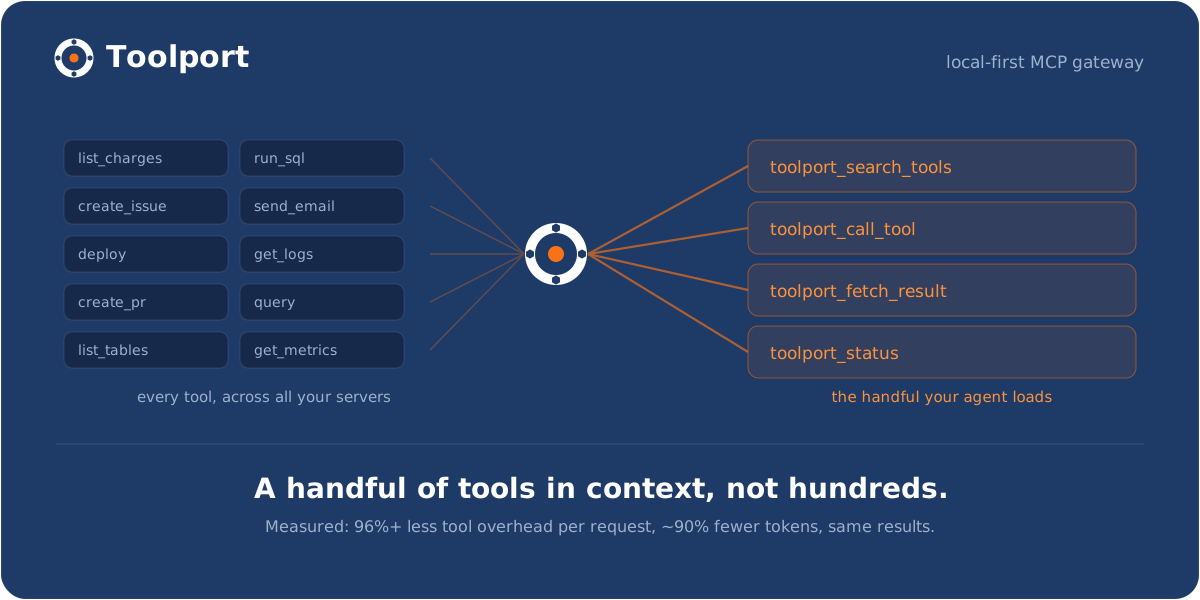
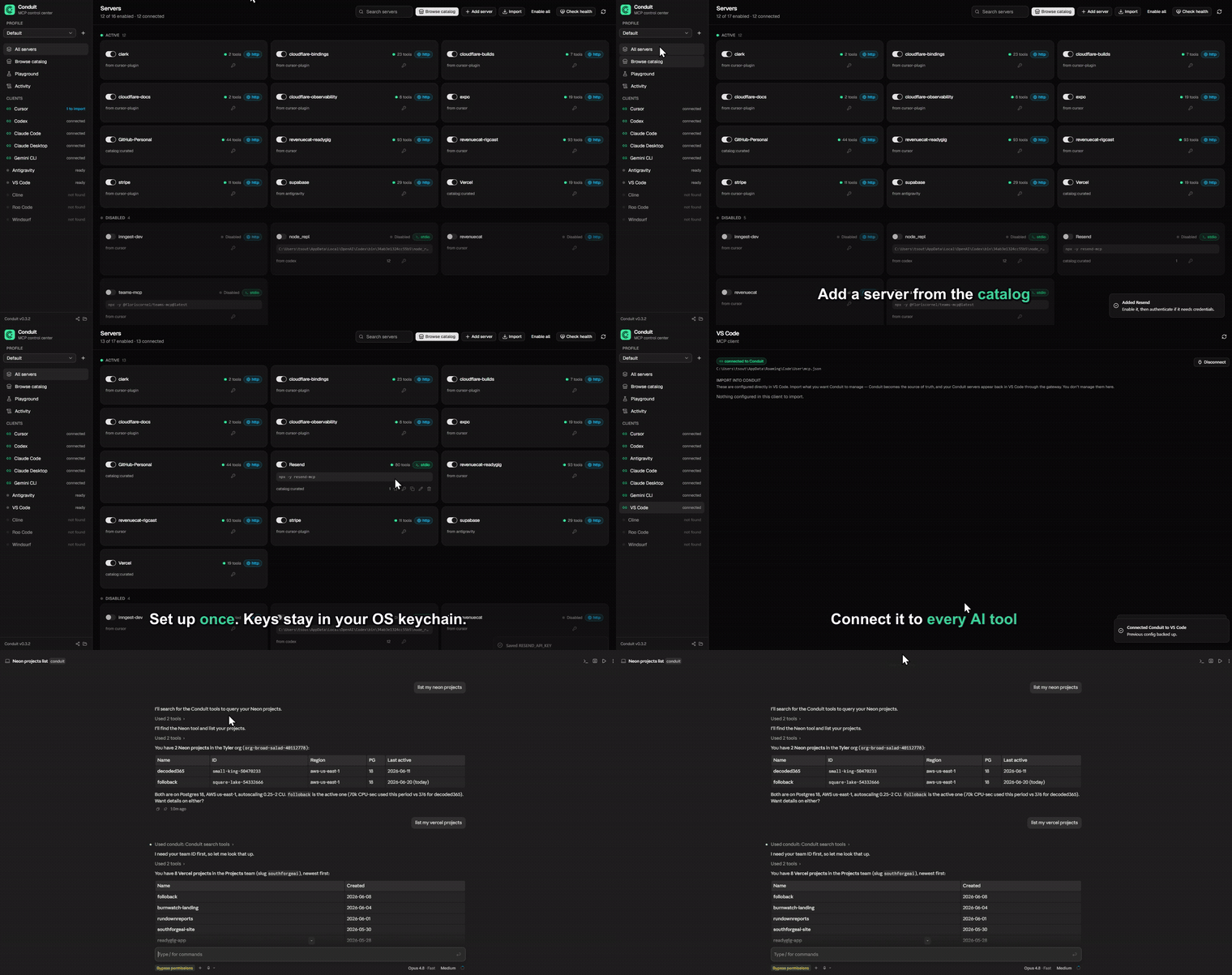
Toolport is a local MCP (Model Context Protocol) gateway. You set up and authenticate each server once, and every AI client (Claude, Cursor, Codex, VS Code, and the rest) points at Toolport and shares them, so you stop configuring the same servers separately in each app.
It also fixes what those servers cost your agent. Every MCP server you connect dumps all of its tools into context on every single request, and it adds up fast: just 3 servers (63 tools) cost ~19,000 tokens of definitions before you've asked anything. Toolport advertises a handful of compact meta-tools the agent searches on demand instead, so it pays ~450 tokens (98% less, measured).
Measured on a frontier model: up to 91% fewer total tokens at the same task success (graded for correct answers, not just completion), plus 98% less tool-definition overhead on every request, rising to 99.5% on a real 415-tool catalog (see BENCHMARK.md). That holds whether you run one AI tool or five, on cloud models (where tokens are your bill) or local ones (where tool defs eat your context window).
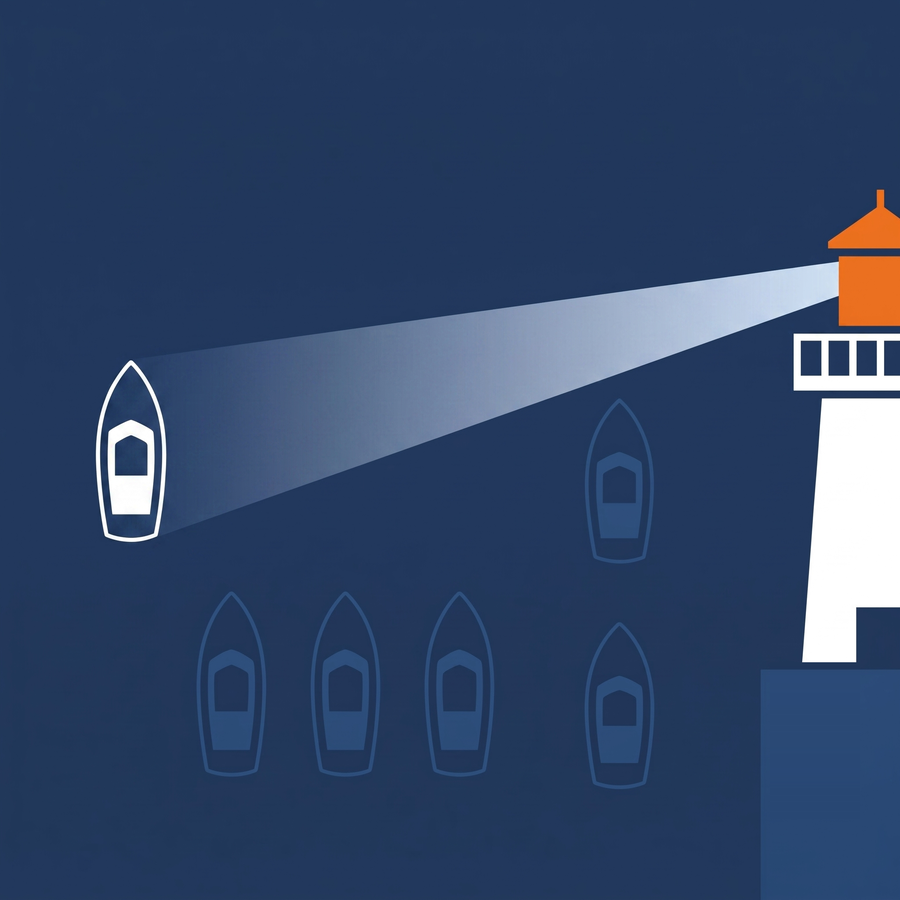 | 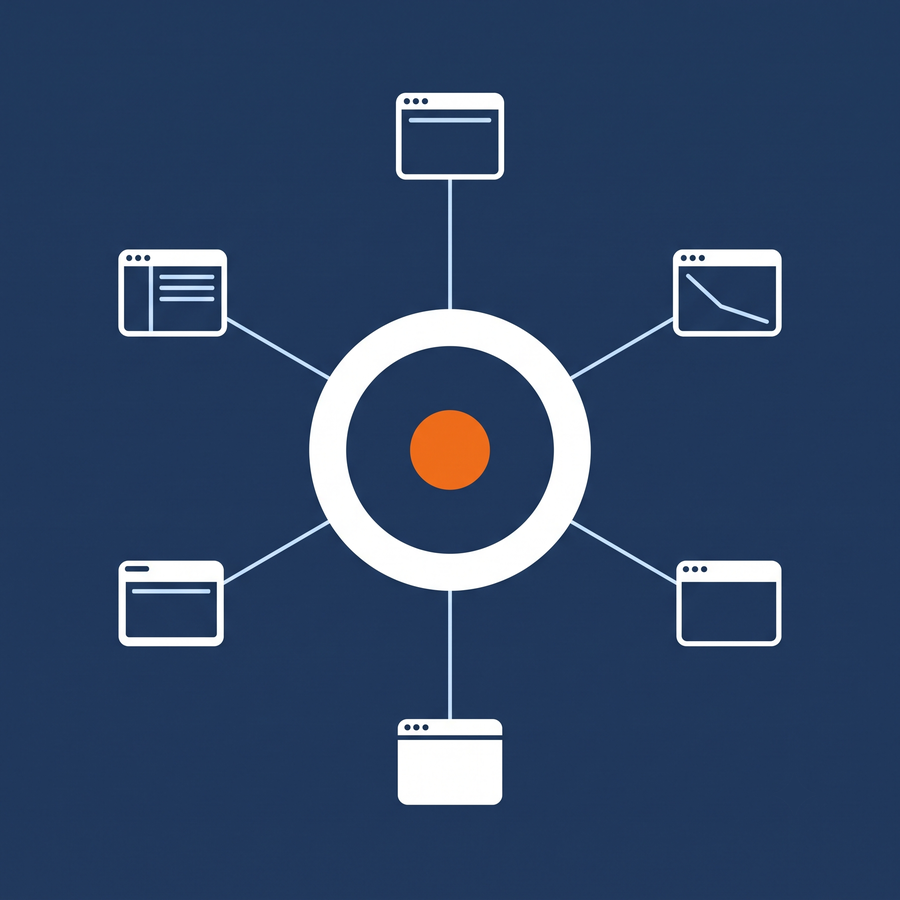 |  |
| Fewer tokens - lazy discovery keeps context flat no matter how many servers you connect | One config, every client - set up a server once, every AI tool shares it | Supply-chain security - rug-pull and tool-poisoning detection on the path |
Get started in two minutes
- Download the installer for Windows, macOS, or Linux (details in Install).
- Add a server from the built-in catalog, or paste a config snippet from any server's docs, and authenticate once.
- Open Clients and click Connect to Toolport on each AI client you use.
That's the whole setup. Every client now shares the same servers, and new servers you add propagate to all of them. There's a 60-second demo on the website if you want to watch it first.
Why
Every MCP server you connect dumps its full tool list into your agent's context on every request, and most AI clients also want their own separate configuration. So you pay a token tax on every call and reconfigure the same servers in every app. Toolport fixes both.
Fewer tokens
- ~90% fewer tokens. In lazy-discovery mode the gateway advertises four compact
meta-tools (
toolport_status,toolport_search_tools,toolport_call_tool,toolport_fetch_result) instead of the full catalog, and the agent searches and calls on demand, so context stays flat no matter how many servers you connect. (A few more appear only when you turn the matching feature on:toolport_confirmwith approvals, enable/disable with agent control,toolport_run_scriptwith code mode, and your saved routines.) Benchmarked, graded for correct answers: up to 91% fewer total tokens at the same task success, 98% less tool-definition overhead per request, 99.5% at a real 415-tool catalog (BENCHMARK.md). Asktoolport_statusfor what it has saved you so far. - Search by intent, not just keywords.
toolport_search_toolsranks by relevance across every server, and no tool is ever hidden, any server's full set is one call away. Optional semantic re-ranking (a local or hosted embeddings endpoint) surfaces paraphrased needs like "charge a card"; off by default, pure lexical otherwise.
One setup, every client
- Set up once, use everywhere. Each client points at one gateway. Add and authenticate a server a single time and it appears in every client.
- Paste from any client's docs. Copy a server config snippet straight from an MCP server's installation instructions (Cursor JSON, Codex TOML, VS Code, Zed, Claude Code CLI, or any other supported client) and paste it into the Add Server dialog. Toolport auto-detects the format and pre-fills the fields, including environment variable values.
- Per-agent scoping. Give each client only the servers it should see. A coding agent literally cannot call a billing tool that isn't in its profile.
- One set of agent rules. Write your instructions once and Toolport applies them
to every client's own global rules location (
AGENTS.md,GEMINI.md,.goosehints, and atoolport-rules.mdin the rules directory of clients that read one) instead of you editing each by hand. Keep several named sets and switch between them. Your own content is never overwritten: Toolport either owns its own file or owns a marked block and leaves every other byte alone, and turning a client off removes what it wrote. Each client is off until you turn it on, and a preview shows the exact bytes first. See docs/agent-rules.md. - Rules Claude Code enforces itself. Write a permission policy once - never
rm -rf, never force-push, ask before any push, never read.env- in Claude Code's own rule syntax, and Toolport writes it into every Claude Code profile'ssettings.json, where Claude Code refuses or asks before a matching native tool call on every call, whatever any hook says. Off and empty by default; only what Toolport added is ever removed. See docs/agent-permissions.md. - Obvious auth. OAuth or API key, stored once in the OS keychain, a single click per server. Newly-authed servers propagate to connected clients without a restart.
- No secrets in client configs. Clients only ever say "talk to Toolport." Keys live in the OS keychain and are injected at runtime.
- A catalog to grow. Add popular servers from a curated list of 50, or search the official MCP Registry, then authenticate through the same flow.
Security, because the gateway is on the path
- Tool integrity (rug-pull + poisoning detection). Toolport fingerprints each tool when you connect a server and flags it if the definition later changes or a server quietly adds one (a "rug pull"), or if a description or schema carries injection-like content ("tool poisoning"). Detection only, on by default, entirely local.
- Content defense (anti-agentjacking). When a tool returns untrusted content (a Sentry error, a web page, an issue body) with injection-like instructions, Toolport flags it and marks it as external data, not instructions, the separation that blunts indirect prompt injection. Never blocks, on by default.
- Human-in-the-loop approvals. Turn on approval mode and destructive tool calls pause until you approve or deny them in the app, with an OS notification when a call is waiting. Deny actually blocks the call; the agent just sees a declined tool call. Your agent asks before it drops the table.
- Governance and audit. Toggle any tool on or off, or hide every destructive tool from every client with one switch. Every call is recorded with per-server latency and error rates.
Control and extras
- Routines: keep the orchestration that worked. When a multi-step Code Mode run proves itself, promote it to a saved, parameterized routine that survives the session and works from any client. Promotion is the only way in, and every save raises a one-shot desktop approval card showing the summary, the calls, the dependencies, the risk class and the content hash, with no always-allow shortcut. Saved routines are advertised as ordinary tools and check their arguments against the stored schema, and a passive Suggested routines queue in Settings collects repeated same-shape calls instead of nagging the agent mid-task. Routine writes are off until you turn them on.
- Agent control, on your terms. Optionally let an agent enable or disable servers
through the gateway (
toolport_enable_server/toolport_disable_server), reflected in the app live. Off by default, and the destructive-tool switch always stays yours. - Full MCP, not just tools. Tools, resources, and prompts are all proxied.
- Test before you wire it up. A built-in playground invokes any tool with a form generated from its schema, so you can confirm a server works without configuring a client first.
- Diagnostics in one click. Bundles your version, OS, a secrets-stripped server summary, and the recent gateway log, ready to paste into a bug report.
How it works
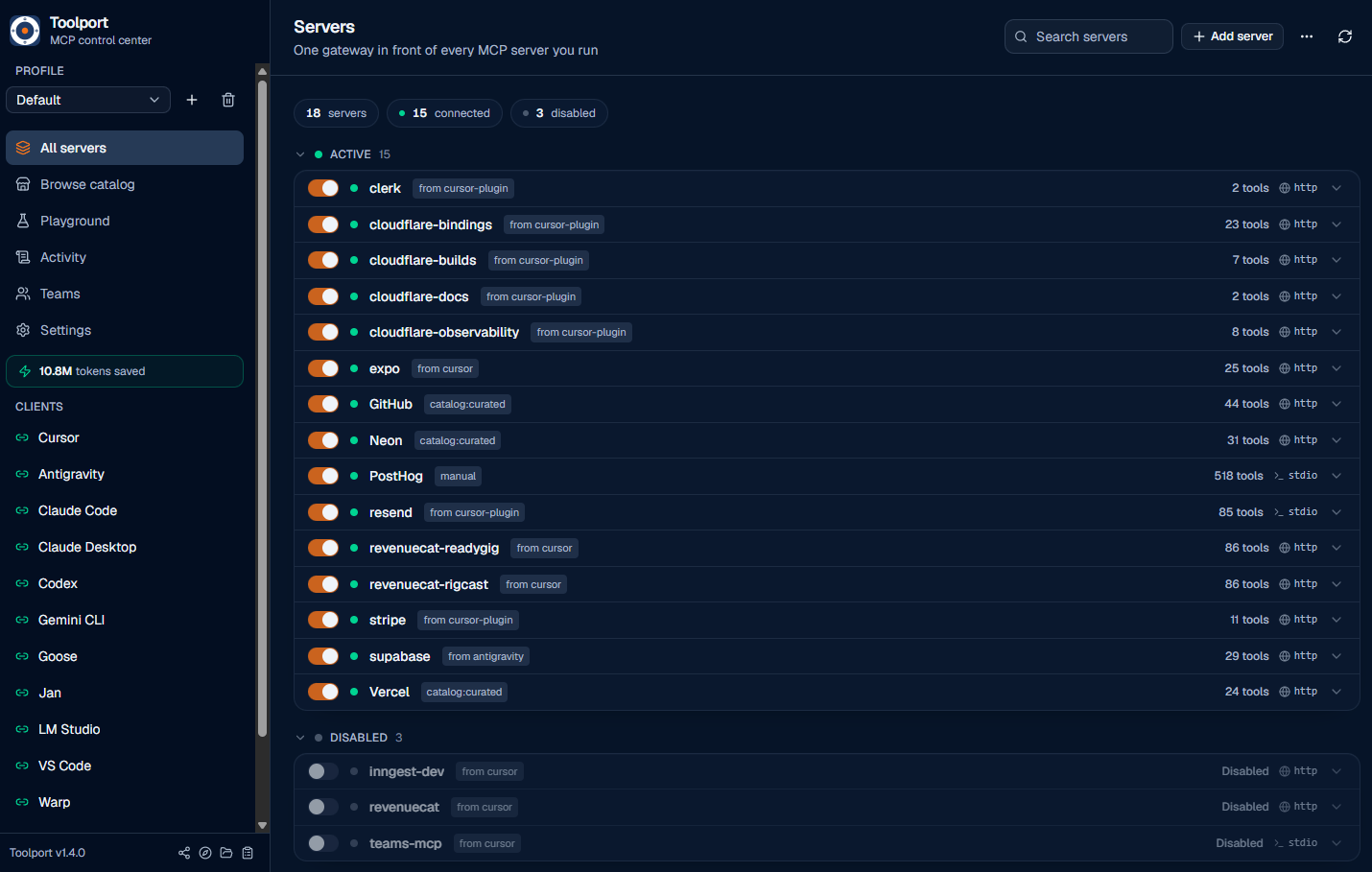
Toolport has two pieces:
- The desktop app (Tauri + React) where you manage servers, profiles, credentials, and which clients are connected.
- The gateway binary (
toolport-gateway) that each AI client launches over stdio. It reads Toolport's registry, connects to the enabled downstream servers (stdio or remote HTTP/SSE), and routes tool calls to the right one. Tool names are namespaced per server (stripe__list_charges) so they never collide.
AI client (Cursor / Claude / Codex / Antigravity / ...)
        │  stdio MCP
        ▼
  toolport-gateway  ──reads──►  registry.json + OS keychain
        │  routes tools/calls
        ▼
  downstream MCP servers (Stripe, Supabase, GitHub, ...)
The registry is the shared source of truth; the gateway watches it and rebuilds live, so toggles and new credentials take effect without restarting the client. If a connected server changes its own tool set mid-session, Toolport picks that up and refreshes too.
Supported clients
Toolport auto-detects these 35 AI clients, installs the gateway into each with one click, and can import a client's existing servers. It writes the config file shown below for you, so you never have to edit these by hand.
| Client | Config file | Format |
|---|---|---|
| Claude Desktop | <config>/Claude/claude_desktop_config.json | JSON (mcpServers) |
| Claude Code | ~/.claude.json | JSON (mcpServers) |
| Cursor | ~/.cursor/mcp.json | JSON (mcpServers) |
| Factory Droid | ~/.factory/mcp.json | JSON (mcpServers) |
| Crush | $CRUSH_GLOBAL_CONFIG/crush.json, or $XDG_CONFIG_HOME/crush/crush.json (~/.config/... by default) | JSON (mcp) |
| VS Code | <config>/Code/User/mcp.json | JSON (servers) |
| Devin Desktop (Cascade) | ~/.codeium/windsurf/mcp_config.json | JSON (mcpServers) |
| Devin Local / CLI | %APPDATA%/devin/mcp_config.json (Windows), ~/.config/devin/mcp_config.json (macOS; Linux default) | JSON (mcpServers) |
| OpenCode | ~/.config/opencode/opencode.json | JSON (mcp) |
| Kilo Code | ~/.config/kilo/kilo.jsonc | JSONC (mcp) |
| Codex | $CODEX_HOME/config.toml (default ~/.codex/config.toml) | TOML (mcp_servers) |
| Copilot CLI | ~/.copilot/mcp-config.json | JSON (mcpServers) |
| Grok Build | $GROK_HOME/config.toml (default ~/.grok/config.toml) | TOML (mcp_servers) |
| Continue | ~/.continue/config.yaml | YAML (mcpServers) |
| Antigravity | ~/.gemini/config/mcp_config.json | JSON (mcpServers) |
| Gemini CLI | $GEMINI_CLI_HOME/.gemini/settings.json (default ~/.gemini/settings.json) | JSON (mcpServers) |
| Qwen Code | $QWEN_HOME/settings.json (default ~/.qwen/settings.json) | JSON (mcpServers) |
| JetBrains Junie | ~/.junie/mcp/mcp.json | JSON (mcpServers) |
| Cline | <config>/Code/User/globalStorage/saoudrizwan.claude-dev/settings/cline_mcp_settings.json | JSON (mcpServers) |
| Roo Code | <config>/Code/User/globalStorage/rooveterinaryinc.roo-cline/settings/mcp_settings.json | JSON (mcpServers) |
| Warp | ~/.warp/.mcp.json | JSON (mcpServers) |
| Amazon Q | ~/.aws/amazonq/mcp.json | JSON (mcpServers) |
| Kiro | ~/.kiro/settings/mcp.json | JSON (mcpServers) |
| Kimi Code | $KIMI_CODE_HOME/mcp.json (default ~/.kimi-code/mcp.json) | JSON (mcpServers) |
| Zed | ~/.config/zed/settings.json | JSON (context_servers) |
| LM Studio | ~/.lmstudio/mcp.json | JSON (mcpServers) |
| Jan | <data>/Jan/data/mcp_config.json | JSON (mcpServers) |
| BoltAI | ~/.boltai/mcp.json | JSON (mcpServers) |
| Pi | ~/.pi/agent/mcp.json | JSON (mcpServers) |
| Oh My Pi | ~/.omp/agent/mcp.json | JSON (mcpServers) |
| Goose | ~/.config/goose/config.yaml | YAML (extensions) |
| Hermes | ~/.hermes/config.yaml | YAML (mcp_servers) |
| AnythingLLM | <config>/anythingllm-desktop/storage/plugins/anythingllm_mcp_servers.json | JSON (mcpServers) |
| Witsy | <config>/Witsy/settings.json | JSON (mcpServers) |
| Amp | ~/.config/amp/settings.json | JSON (amp.mcpServers) |
<config> is your OS application-config dir (%APPDATA% on Windows, ~/Library/Application Support on macOS, ~/.config on Linux); <data> is the data dir (~/.local/share on Linux, the same as <config> elsewhere). Zed and Goose paths vary slightly by OS; Toolport resolves the right one automatically.
Codex setup walkthrough
Use this when Codex has already created its home directory ($CODEX_HOME, or ~/.codex/ when that env is unset).
- In Toolport, add or enable the MCP servers you want Codex to use.
- Open Clients, select Codex, optionally choose a profile, and click Connect to Toolport.
- Toolport updates
$CODEX_HOME/config.toml(default~/.codex/config.toml) with a single[mcp_servers.toolport]entry. That entry runs the resolvedtoolport-gatewaybinary; existing Codex TOML keys and other MCP servers are preserved, and an existing config is backed up before the write. (Older installs that still have[mcp_servers.conduit]are renamed totoolporton the next Toolport launch.) - Start a new Codex session so it re-reads the config. In Toolport, the Codex row changes to connected to Toolport; in Codex, Toolport-managed tools are served through the one
toolportMCP server. With lazy discovery enabled, Codex gets Toolport's compact search tools instead of every downstream tool up front.
Gotcha: when running Toolport from source, build the gateway first with npm run build:gateway. The desktop dev server does not build the separate binary that Codex spawns, so Codex will report the gateway as missing until that binary exists.
Open WebUI and other HTTP/OpenAPI consumers
The gateway speaks HTTP/OpenAPI natively, so Open WebUI (and any OpenAPI tool
client) connects straight to Toolport, no bridge or proxy. Flip on Settings ->
Integrations -> Open WebUI / HTTP endpoint in the app (or run
toolport-gateway --http 8765 after setting TOOLPORT_HTTP_TOKEN), then add
http://localhost:8765 as an OpenAPI tool server. See
docs/openwebui.md. The same endpoint serves
any HTTP/OpenAPI MCP consumer (n8n, LibreChat, custom agents).
Agent plugin (Agent Plugins 1.0 and Claude Code)
Clients that install Agent Plugins 1.0 packages
(VS Code, GitHub Copilot CLI, the Copilot app, and other conformant agents) can
connect to Toolport by installing one plugin instead of editing MCP config.
Point your client's plugin install flow at
packaging/agent-plugin/toolport/ from a
checkout (the folder that contains plugin.json). From the first release tagged
after this lands, the same folder also ships as toolport-agent-plugin.zip on
the releases page. The plugin
bundles the gateway's MCP server entry plus a skill that teaches the agent
Toolport's search → call workflow, and the same folder also carries the Claude
Code plugin layout. It launches the gateway already installed by the desktop
app, so every plugin install shares your existing servers, credentials, and
profiles.
If you already connected that client in the app's Clients view, disconnect it there first. VS Code, Claude Code, and GitHub Copilot CLI are all managed there, and leaving both in place connects the gateway twice and shows every meta-tool in duplicate. Details in packaging/agent-plugin/toolport/README.md.
Headless / container / MCP over the network
The same --http process also serves MCP streamable-HTTP at POST /mcp, including
sessionless MCP 2026-07-28 requests and legacy initialize/session clients on the same
endpoint. Sandboxed coding agents and remote clients can use a URL instead of stdio. For
Docker, env-file secrets, and a compose example, see
docs/headless.md. Prebuilt image:
docker pull ghcr.io/tsouth89/toolport-gateway:latest (published from main).
Configuration
Lazy discovery, the destructive-tool block, and agent control are global settings, stored in the registry and toggled in the app's Settings view, so they apply to every client (lazy discovery is on by default). Per-client behavior is set via env vars on the gateway entry, written for you when you connect a client:
TOOLPORT_CLIENT_ID=<id>- identifies this client for live profile resolution (written automatically when you Connect a client).TOOLPORT_PROFILE=<name>- initial profile scope for a scoped install. Unset = follow the active profile (resolved live viaTOOLPORT_CLIENT_ID).TOOLPORT_DISCOVERY=lazy|full|grouped- optional per-client override of the global discovery setting. Rarely needed; the gateway reads the registry default otherwise.TOOLPORT_REGISTRY=<path>- override the registry file location. Defaults to a stable per-user path so packaged and unpackaged clients agree.TOOLPORT_DATA_DIR=<path>- override the full Toolport data directory.TOOLPORT_RESULT_BUDGET=<bytes>- cap oversized tool results at this many bytes (0 disables it). Optional; default budget applies when unset.TOOLPORT_HTTP=<port>(with optionalTOOLPORT_HTTP_HOST, default127.0.0.1, andTOOLPORT_HTTP_TOKENfor the required bearer token) - run the gateway in HTTP/OpenAPI mode instead of stdio, for Open WebUI and other OpenAPI clients (see above). The in-app Settings -> Integrations toggle sets these for you, and the gateway refuses to bind without a token or registered HTTP client. For isolated local development only,--insecure-loopbackexplicitly permits an unauthenticated loopback listener; it never permits an open non-loopback bind.TOOLPORT_METRICS=1- opt-in PrometheusGET /metricson the HTTP surface.TOOLPORT_DEBUG=1- per-request gateway trace logging.TOOLPORT_CODE_MODE=1- force-enable code mode (toolport_run_script) even if Settings has it off. Code mode is on by default (Settings kill switch turns it off). Each in-script tool call still respects profile scope and human approval; code mode is not a security boundary.
Every TOOLPORT_* name still accepts the pre-rename CONDUIT_* alias (for example
CONDUIT_HTTP_TOKEN continues to work). Prefer TOOLPORT_* in new configs.
Semantic search (optional). Lazy discovery ranks tools lexically by default. Point it
at any /v1/embeddings endpoint (LM Studio, Ollama, or a cloud provider) to blend in
embedding similarity for paraphrased queries: TOOLPORT_SEMANTIC=on,
TOOLPORT_EMBED_ENDPOINT, TOOLPORT_EMBED_MODEL, plus optional TOOLPORT_EMBED_KEY
(endpoint auth) and TOOLPORT_EMBED_BLEND.
Multiple accounts for the same service. Credentials belong to a server, not a
profile. To use, say, a work and a personal GitHub, add GitHub twice as two
servers ("GitHub (work)", "GitHub (personal)"), authenticate each with its own
account, and enable one in each profile. A client scoped to the work profile
(TOOLPORT_PROFILE) then only ever sees the work account. Tool names are
namespaced per server, so the two never collide even in the same profile.
Install
Quickest:
# macOS (Homebrew)
brew install --cask tsouth89/toolport/toolport

# macOS or Linux (script: .deb via apt where available, else AppImage; Mac copies the app)
curl -fsSL https://toolport.app/install.sh | bash
# Windows (winget, once the package is published)
winget install Toolport.Toolport

# Windows (PowerShell: downloads the signed installer, verifies its checksum, installs per-user)
irm https://toolport.app/install.ps1 | iex
The Windows script installs silently and needs no administrator rights. It
refuses to install anything whose published SHA-256 doesn't match, and prints the
signing publisher so a signature problem is distinguishable from a routine
SmartScreen warning. Options go through environment variables, since a
pipe-to-iex one-liner can't take parameters: $env:TOOLPORT_VERSION pins a
release, $env:TOOLPORT_INTERACTIVE=1 runs the setup wizard instead, and
$env:TOOLPORT_DOWNLOAD_ONLY=1 fetches and verifies without installing. Saved to
a file, it takes the matching -Version, -Interactive, and -DownloadOnly
parameters.
Prebuilt installers are published on the
Releases page. Toolport runs on
Windows, macOS, and Linux. On Linux, take the .deb on Debian/Ubuntu
and the AppImage everywhere else, including Arch and its derivatives
(Manjaro, EndeavourOS, Omarchy). The AppImage needs no root and works on both
Mesa and the proprietary NVIDIA driver. To run from source, see Development
below.
If you are on 1.15.0 or older on Arch, update. Those AppImages bundled
wayland 1.20, which the host's Mesa then loaded instead of its own; libEGL_mesa
failed to link, and the window opened grey and never painted. It looked like an
AMD-only bug because NVIDIA's EGL does not use that library. 1.16.0 stops
bundling those libraries and the split is gone (see Troubleshooting). If you
worked around it with the native package, you can stay there, nothing is broken;
you just no longer have to.
Prefer a real package on Arch? toolport-bin repackages the same .deb
payload against your system's WebKitGTK, so it upgrades and removes through
pacman. It is a preference now rather than a workaround, and the installer
script no longer reaches for it on your behalf.
# Arch / Manjaro / EndeavourOS
paru -S toolport-bin        # or: yay -S toolport-bin

# Omarchy
omarchy pkg aur add toolport-bin
AUR account registration is paused upstream, so toolport-bin is not published
yet and the commands above will not find it. Build the identical package from
this repo in the meantime, no AUR account needed:
git clone https://github.com/tsouth89/toolport && cd toolport
scripts/render-aur.sh 1.16.0 ./aur     # use the released version
cd aur && makepkg -si
Both the Windows and macOS installers are code-signed, and macOS is also notarized, so it installs cleanly through Gatekeeper. On Windows the installer carries a validated publisher name (no "unknown publisher"), but because it uses a standard certificate rather than EV, SmartScreen reputation still builds with downloads, so an early install may show "Windows protected your PC", click More info -> Run anyway to continue. The Linux packages are unsigned, as is typical. See docs/SIGNING.md for details.
Updating and uninstalling on Linux. There is no graphical uninstaller, use the
terminal. The package name is toolport.
# Update to a newer version: just install the new .deb, it upgrades in place.
sudo apt install ./Toolport_1.14.0_amd64.deb

# Uninstall (keeps your config + saved secrets).
sudo apt remove toolport

# Uninstall and wipe app config too (secrets in the keyring stay).
sudo apt purge toolport
On Arch, paru -S toolport-bin upgrades in place and paru -R toolport-bin
removes it. A package built by hand with makepkg -si removes the same way:
sudo pacman -R toolport-bin.
If you used the AppImage, there's nothing to uninstall, just delete the
.AppImage file. (On Windows use Add or Remove Programs; on macOS drag
Toolport.app to the Trash.)
Development
Requires Node and the Rust toolchain.
npm install
npm run tauri dev      # run the desktop app
Other useful commands:
cargo test --manifest-path src-tauri/Cargo.toml   # Rust unit tests (lib + gateway)

# Build the gateway binary. Required when running from source: AI clients spawn
# this binary directly, so without it a connected client reports "not found".
# (Packaged releases bundle it, so installed users never need this.)
npm run build:gateway

# Build a Windows installer (NSIS) with the gateway bundled.
npm run tauri:bundle
The frontend is typechecked with npx tsc --noEmit.
Troubleshooting
-
OAuth opens a blank page (macOS). The OAuth flow redirects back to a local
http://127.0.0.1callback. Safari can silently block that redirect, so the sign-in page renders blank. Set Chrome or Brave as your default browser (or paste an access token instead). Complete one attempt at a time, an abandoned attempt keeps the callback port reserved for a few minutes and can cause a "state mismatch" on the next try. -
A client reports the gateway "was not found" (running from source). Build the gateway binary once:
npm run build:gateway(orcargo build --no-default-features --bin toolport-gateway --manifest-path src-tauri/Cargo.toml).npm run tauri devbuilds the app but not this separate binary; packaged releases bundle it, so installed users never hit this. -
An npx/uvx server shows "Error" then works on retry. On a cold npm/PyPI cache the first connect can take up to ~2 minutes while the package downloads. v1.6.0+ shows "Installing…" during that wait and pre-warms downloads when you add the server. If it still fails, check network access and try Re-check after a minute.
-
Repeated macOS keychain prompts / "could not read secret from the keychain" in dev. An unsigned dev build gets an unstable code-signing identity, so the keychain re-prompts or denies reads. Signed release builds (v0.9.3+) don't: they store secrets in the macOS data-protection keychain under a shared access group, so the gateway reads them with no prompt. This is a dev-only artifact.
-
"could not read/store secret" on Linux. Secret storage uses the freedesktop Secret Service (libsecret), provided by GNOME Keyring, KWallet, or similar. A headless box or a session without a running keyring daemon has nowhere to store secrets. Run Toolport in a desktop session, or install and unlock a keyring (e.g.
gnome-keyring). -
macOS keychain and the gateway (v0.9.3+). The app and the separately-signed gateway share a team-scoped keychain access group, so the gateway reads the secrets the app saved with no prompt, even across app updates. (Earlier releases showed a one-time "Always Allow" prompt; on current signed builds it's gone.)
-
VS Code: the
toolportserver doesn't start automatically. VS Code may require you to click Start Server on thetoolportMCP entry the first time, that's VS Code's own MCP handling, not Toolport. After that it reconnects on its own. -
Linux: the AppImage shows no window, or a grey empty one (
EGL_BAD_PARAMETER). Fixed in 1.16.0; update. On 1.15.0 and older the process would start, put a window on screen, and never paint it, withWebKitWebProcessdying at launch:Could not create default EGL display: EGL_BAD_PARAMETER. Aborting...The cause was the AppImage bundling wayland's client libraries.
AppRunputs the bundle onLD_LIBRARY_PATH, which the loader then also applies to the host's GPU drivers, and those are deliberately not bundled. So a current Mesa got resolved against Ubuntu 22.04's wayland 1.20 and could not load at all:/usr/lib/libEGL_mesa.so.0: undefined symbol: wl_fixes_interfacewl_fixes_interfacearrived in wayland 1.23. This read as an AMD-only bug for a long time, but it was never about the GPU: NVIDIA's proprietary EGL is a separate implementation that does not linklibwayland-client, so it was the only stack that survived. Every Mesa driver hit it, on X11 as well as Wayland. 1.16.0 stops bundling those four libraries, so the host's are used and both drivers work. It was not the bundled WebKitGTK, which is current.If a grey window survives the update, that is a different problem, and on a virtualized GPU it is usually EGL itself: try
EGL_PLATFORM=surfaceless ./Toolport_*.AppImage, and turn on 3D acceleration if you are in a VM. -
Arch + proprietary NVIDIA:
toolport-binexits at startup, but the AppImage works. This one runs the other way round, and it is a system-stack problem, not a Toolport one: the native package links your system GTK/WebKitGTK, and on NVIDIA that combination exits immediately withGdk-Message: Error 71 (Protocol error) dispatching to Wayland display.GDK_BACKEND=x11gets past that, but the window then cannot allocate buffers (Failed to create GBM buffer of size 1240x820: Invalid argument) and the app is unusable. The AppImage carries its own GTK and WebKitGTK and sidesteps both, which is why it is the default recommendation on Arch. Observed on Omarchy (Hyprland via uwsm), RTX 4070 SUPER,nvidia-open-dkms610.57.04, against system GTK 3.24.52 / WebKitGTK 2.52.6. -
Linux: the first launch killed Xwayland, and now nothing happens at all. Fixed in 1.15.0. Older AppImages forced
GDK_BACKEND=x11in a way nothing could override, so on a Wayland session with a fragile Xwayland (a VMware guest on thevmwgfxdriver, for one) the first launch took Xwayland down session-wide, and every launch after that blocked forever on the orphaned X socket with no window and no error. Log out and back in to get Xwayland back, then use 1.15.0 or newer, whereGDK_BACKEND=wayland ./Toolport_*.AppImageis honoured. Note the AppImage wrapper is not the app: the real process isconduit, and killing only the wrapper leaves it holding the single-instance lock so the next launch hangs the same way.
Status
Toolport is in active development. Working end to end: the gateway, lazy discovery, per-agent scoping, OAuth/key auth with live propagation, the catalog, client import/migrate, per-tool and destructive-tool governance, the human approval queue, a global Settings view, tool-integrity and content-defense detection, an audit log with latency/error stats, resources + prompts proxying, a tool playground, code mode with approval-gated saved routines, and a headless/container gateway (MCP over HTTP/SSE, Docker, GHCR image — see docs/headless.md). See CHANGELOG.md for what has shipped and docs/ROADMAP.md for the original build plan.
Known issues
- Linux only, glib
VariantStrItersoundness (RUSTSEC-2024-0429). Tauri's Linux webview stack pulls inglib0.18 transitively (wry → webkit2gtk → gtk 0.18 → glib 0.18). The fix only exists inglib0.20+, and the gtk-0.18 binding line, which is what Tauri 2 uses on Linux, hard-pinsglib = "^0.18", so the patched release cannot be selected without moving the whole webview stack. The bug is a soundness/null-deref crash (not remote code execution), is confined to the webview binding layer (Toolport never callsVariantStrIter), and does not affect the Windows or macOS builds. We are tracking the upstream move to a glib-0.20 stack and will apply a[patch.crates-io]backport if Linux crashes surface before then.
Toolport Teams
Want one shared, governed MCP server set across your whole team? Toolport Teams lets an admin define the team's servers once, every member's Toolport syncs them, and each member's keys still never leave their own machine.
Run it whichever way you prefer:
- Hosted: sign in at toolport.app/teams and invite your team, no infrastructure to run.
- Self-hosted: one Docker command (
docker pull ghcr.io/tsouth89/toolport-teams).
Same pricing hosted or self-hosted:
- Free for up to 5 people: one shared server set, the safety policy, and a 30-day exportable audit trail.
- Team, $39/month for up to 5 people, then $12/person: adds per-server access control, roles, spend budgets, full audit history, and Slack/Discord/Teams alerts.
- Either way, each member's keys stay on their own machine, and local-command servers are per-member opt-in (a team config can never silently run code on a member's machine).
Pricing, the self-host quickstart, and checkout are all at toolport.app/teams.
License
MIT, and the local app and gateway always will be. Toolport follows an
open-core model: the desktop app and toolport-gateway are free and open source, and
Toolport Teams (above) funds the free app. Anything you contribute here is MIT and
benefits everyone, see CONTRIBUTING.md.
If Toolport saves you tokens (ask toolport_status how many), a star helps other
people find it.