Autodesk Fusion MCP Server Add-in
Control Fusion with AI !
This add-in for Autodesk Fusion connects to the Aura Friday MCP-Link server, making Fusion available as a remote tool that AI agents can control. Official Store Link
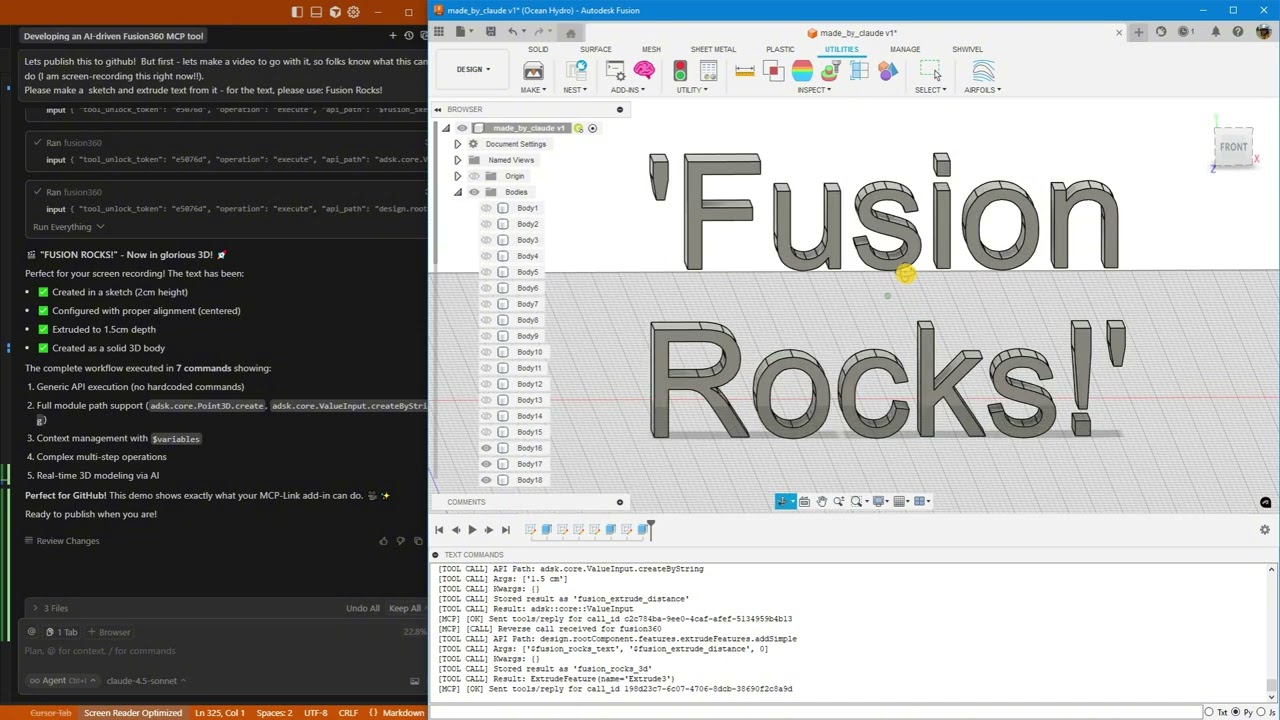
Click above to watch AI create "Fusion Rocks!" in 3D
🚀 What's New
Latest: Enhanced Python Integration (January 2026)
-
🔥 Pre-injected shortcuts -
app,ui,design,rootComponentavailable immediately in Python -
🔥 Cross-operation context - Access objects stored via
store_asfrom Python usingfusion_context -
🔥 ValueInput support - Generic API now constructs ValueInput objects automatically
-
🔥 Triple documentation sources - Introspection + Online docs + Best practices
-
🔥 Rich API docs with samples - Fetch from Autodesk's cloudhelp with code examples
-
🔥 Automatic updates - Secure, signature-verified updates without reinstalling
Thread-Safe Architecture (November 2025)
-
✅ Rock-solid stability - All Fusion API calls now execute on main thread
-
✅ Zero crashes - Work queue system prevents threading issues
-
✅ Centralized logging - Thread-safe diagnostics from all components
-
✅ Production ready - Handles heavy loads without instability
Python Execution + MCP Tool Integration
AI can now run arbitrary Python code directly inside Fusion with full access to:
-
✅ Entire Fusion API (
adsk.core,adsk.fusion,adsk.cam) -
✅ All loaded add-ins (access your custom add-ins automatically!)
-
✅ SQLite databases (store and query design data)
-
✅ Browser automation (open documentation, extract data)
-
✅ User popups (show results, get input)
-
✅ 500+ AI models via OpenRouter
-
✅ Local AI models (offline inference)
-
✅ Desktop automation (Windows control)
Example: AI analyzes your AirfoilTools add-in, finds the best airfoil from 1,538 profiles, stores results in SQLite, and shows a popup—all in one command!
What This Is
A Fusion add-in that gives AI unlimited access to Fusion through three powerful capabilities:
1. 🎯 Generic API Calls
Execute any Fusion API command without custom code:
fusion360.execute({
  "api_path": "design.rootComponent.sketches.add",
  "args": ["design.rootComponent.xYConstructionPlane"]
})
2. 🐍 Python Execution (NEW!)
Run arbitrary Python with full Fusion access:
fusion360.execute({
  "operation": "execute_python",
  "code": """
import adsk.core, adsk.fusion

# Create sketch
sketch = design.rootComponent.sketches.add(design.rootComponent.xYConstructionPlane)

# Store in database
mcp.call('sqlite', {
    'input': {'sql': 'INSERT INTO designs (name) VALUES (?)',
              'params': [sketch.name]}
})

# Show popup
mcp.call('user', {
    'input': {'operation': 'show_popup',
              'html': f'<h1>Created {sketch.name}!</h1>'}
})
"""
})
3. 🔗 MCP Tool Integration (NEW!)
Access 10+ built-in tools from Fusion:
-
SQLite databases
-
Browser automation
-
User popups
-
Python execution
-
AI models (local & cloud)
-
Desktop automation
-
And more!
4. 📚 Multi-Source Documentation (NEW!)
AI has access to three complementary documentation sources:
Quick Search (Introspection):
fusion360.execute({
  "operation": "get_api_documentation",
  "search_term": "ExtrudeFeature",
  "category": "class_name"
})
Rich Docs with Samples (Online):
fusion360.execute({
  "operation": "get_online_documentation",
  "class_name": "ExtrudeFeatures",
  "member_name": "createInput"
})
# Returns: parameter tables, return types, and 8+ working code samples!
Best Practices Guide:
fusion360.execute({
  "operation": "get_best_practices"
})
# Returns: coordinate systems, body naming, PTransaction patterns, etc.
🎯 What AI Can Do
Basic Operations
-
✅ Create parametric sketches with precise dimensions
-
✅ Add text and extrude it to 3D
-
✅ Generate mounting holes, brackets, mechanical parts
-
✅ Execute any Fusion API command
Advanced Workflows (NEW!)
-
🔥 Access your custom add-ins - AI discovers and uses ANY loaded add-in
-
🔥 Store design data - Save analysis results to SQLite
-
🔥 Query databases - Find optimal designs from your data
-
🔥 Show results - Display popups with charts, tables, forms
-
🔥 Automate workflows - Combine Fusion + database + browser + AI
-
🔥 Call AI models - Get design suggestions from 500+ models
-
🔥 Rich documentation - Access Autodesk's official docs with code samples
-
🔥 Auto-updates - Get new features without reinstalling
Real-World Example
# AI analyzes AirfoilTools add-in (15,000+ users!)
# Finds best airfoil from 1,538 profiles
# Stores in SQLite
# Shows results in popup
# All in one Python command!
🛠️ Built-in MCP Tools
Everything you need. Nothing you don't.
These tools ship with MCP-Link and work immediately. No configuration, no API keys, no setup.
Tool Description
🌐 Browser Automate Chrome: read, click, type, navigate, extract data
🧠 SQLite Database with semantic search and embeddings
🐍 Python Execute code locally with full MCP tool access
🤖 OpenRouter Access 500+ AI models (free and paid)
🤗 HuggingFace Run AI models offline (no internet needed)
📚 Context7 Pull live documentation for any library
🖥️ Desktop Control Windows apps (click, type, read)
💬 User Show HTML popups for forms, confirmations
🔗 Remote Let external systems offer tools (like Fusion!)
🔌 Connector Add any 3rd party MCP tools
Want more? Add any third-party MCP tools or build your own!
📦 Installation
Prerequisites
Download MCP-Link Server
Get the latest release: https://github.com/AuraFriday/mcp-link-server/releases/tag/latest
Install the Add-In Official link: https://apps.autodesk.com/FUSION/en/Detail/Index?id=7269770001970905100
Optional manual install
2b. Clone This Repository
git clone https://github.com/AuraFriday/Fusion-360-MCP-Server.git
2c. Load as Fusion Add-in
-
Open Fusion
-
Press
Shift+Sto open Scripts and Add-Ins -
Click the Add-Ins tab
-
Click the green + button next to "My Add-Ins"
-
Navigate to the cloned repository folder
-
Select the folder and click OK
-
Click Run to start the add-in
Configuration
The add-in auto-connects to the MCP server on startup. Check the TEXT COMMANDS window in Fusion to see connection logs.
🎬 Quick Start Examples
Example 1: Get API Documentation (NEW!)
# Quick search by class name
fusion360.execute({
  "operation": "get_api_documentation",
  "search_term": "Sketch",
  "category": "class_name",
  "max_results": 3
})

# Get rich docs with code samples
fusion360.execute({
  "operation": "get_online_documentation",
  "class_name": "ExtrudeFeatures",
  "member_name": "createInput"
})
# Returns: Full parameter descriptions, return types, and 8 working examples!

# Get best practices guide
fusion360.execute({
  "operation": "get_best_practices"
})
# Returns: Coordinate systems, body naming, construction planes, PTransaction patterns
Example 2: Simple Sketch (Generic API)
# Create a sketch
fusion360.execute({
  "api_path": "design.rootComponent.sketches.add",
  "args": ["design.rootComponent.xYConstructionPlane"],
  "store_as": "my_sketch"
})

# Add a rectangle
fusion360.execute({
  "api_path": "$my_sketch.sketchCurves.sketchLines.addTwoPointRectangle",
  "args": [
    {"type": "Point3D", "x": 0, "y": 0, "z": 0},
    {"type": "Point3D", "x": 10, "y": 5, "z": 0}
  ]
})
Example 3: Python with Database (NEW!)
fusion360.execute({
  "operation": "execute_python",
  "code": """
import adsk.core, adsk.fusion

# Create mounting plate
sketch = design.rootComponent.sketches.add(design.rootComponent.xYConstructionPlane)
lines = sketch.sketchCurves.sketchLines
lines.addTwoPointRectangle(
    adsk.core.Point3D.create(0, 0, 0),
    adsk.core.Point3D.create(10, 8, 0)
)

# Add mounting holes
circles = sketch.sketchCurves.sketchCircles
for x, y in [(1, 1), (9, 1), (1, 7), (9, 7)]:
    circles.addByCenterRadius(adsk.core.Point3D.create(x, y, 0), 0.25)

# Store in database
mcp.call('sqlite', {
    'input': {
        'sql': 'INSERT INTO parts (name, holes) VALUES (?, ?)',
        'params': [sketch.name, 4],
        'database': 'designs.db',
        'tool_unlock_token': '29e63eb5'
    }
})

print(f'Created {sketch.name} with 4 mounting holes')
"""
})
Example 4: Access Custom Add-ins (NEW!)
fusion360.execute({
  "operation": "execute_python",
  "code": """
import sys

# Find loaded add-ins
addins = [name for name in sys.modules.keys() if 'addin' in name.lower()]
print(f'Found {len(addins)} add-ins')

# Access AirfoilTools (if loaded)
if 'AirfoilTools' in str(addins):
    airfoil_main = sys.modules['...AirfoilTools_py']
    foildb = airfoil_main.foildb2020.Foildb2020()

    # Find best airfoil
    best = max(foildb, key=lambda x: x['clcd'])
    print(f'Best L/D ratio: {best["clcd"]:.2f}')

    # Store in database
    mcp.call('sqlite', {
        'input': {
            'sql': 'INSERT INTO airfoils (name, ld_ratio) VALUES (?, ?)',
            'params': [best['Foil_fn'], best['clcd']],
            'database': 'airfoils.db',
            'tool_unlock_token': '29e63eb5'
        }
    })
"""
})
🏗️ Architecture
How It Works
-
Add-in loads and connects to local MCP-Link server
-
Registers itself as a
fusion360tool via reverse connection -
AI sends commands with three operation types:
-
Generic API calls (simple oper